Conduit MCP: How to Set Up and Update a Guest Portal


Portal Setup
Create and update through MCP
We joined a customer setup call and found that most of the work was already done through MCP. The conversation was about going live and answering their remaining questions.
The same connection can help after setup. When the team wants to highlight a dinner offer or remove an extra it no longer wants to show, it can make a supported change from its existing AI assistant and review the result.
Conduit MCP lets a compatible AI assistant work with the Conduit tools and data your team permits. For Portals, that includes creating a guest's portal from the property's saved settings and updating the offers on it.
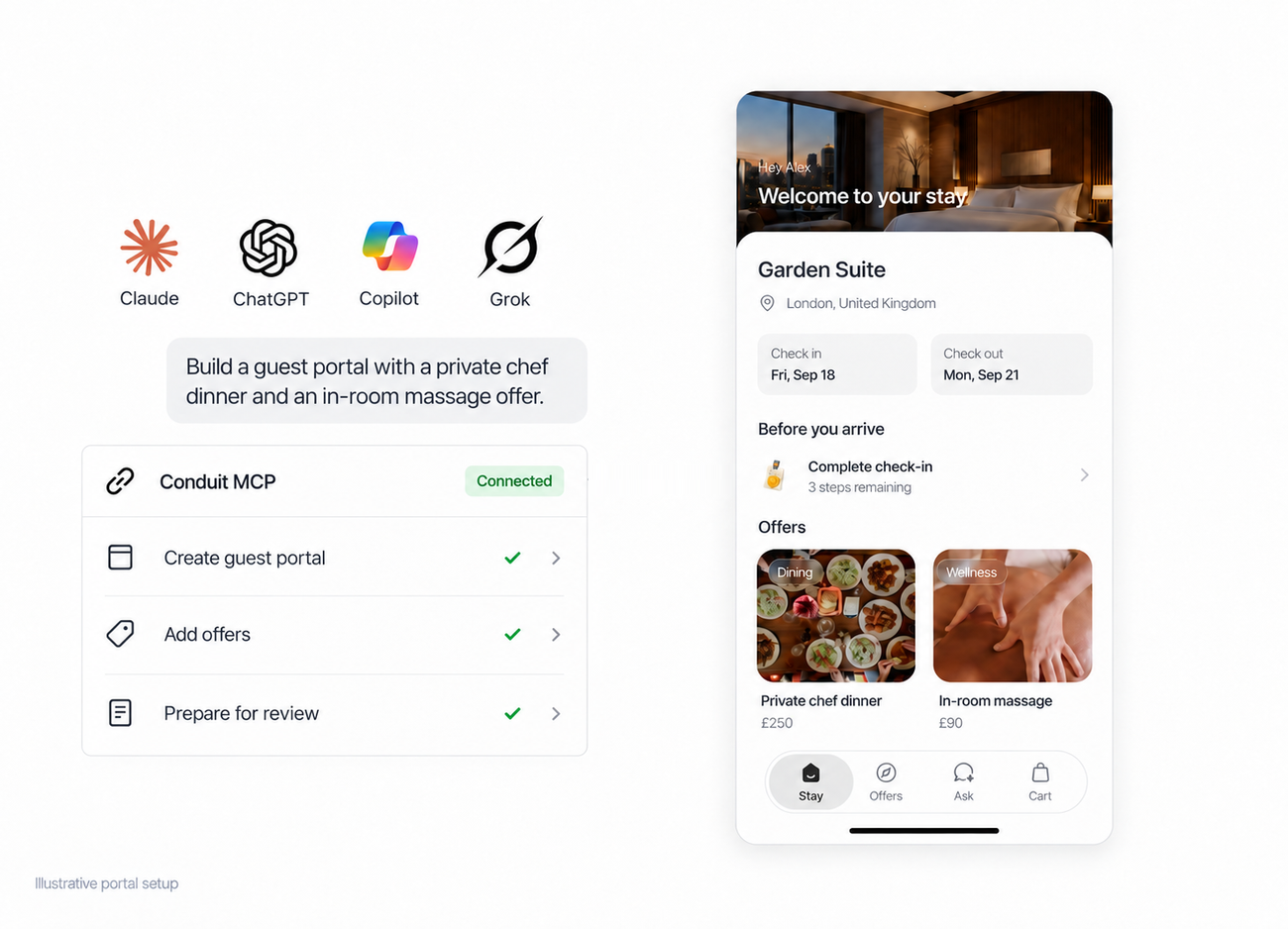
Illustrative portal setup, not a live execution transcript. Client capabilities and available tools depend on the connection and workspace permissions.
Start with the property's settings
MCP does not replace the decisions behind a good guest experience. Your team still decides which services to offer, what they cost, who fulfills them, and which requests need approval.
The portal tools use those existing settings. They do not invent a new service catalog or design an arbitrary guest interface from a prompt.
This keeps an assistant's work tied to the configuration the property already uses. An early-check-in offer should follow the property's approval rules whether a person adds it in Conduit or an authorized AI assistant adds it through MCP.
Connect an assistant with the right access
MCP access requires a v3 plan and an enabled workspace. Follow Conduit's MCP setup guide for authentication, client instructions, and the permissions needed to make changes.
A connection that can read data may not be able to change a portal. In particular, Conduit's read-only ChatGPT/Codex plugin is different from a direct MCP connection with write access. Check the actual tools available in the client before expecting it to make changes.
Keep approval prompts on for writes. Your team should review a change before an assistant applies it.
Create the portal for the correct reservation
Start by identifying the workspace, guest, and reservation. A guest may have more than one stay, so avoid a request that identifies them only by first name.
A useful instruction is:
Find the correct reservation for this guest, show the available portal offers, and propose which ones to include. Ask before making changes.
The assistant can use the available Conduit tools to look up the portal or create it from the saved settings. Creating a portal is separate from sending its link to a guest; review the result before sharing it.
Add or highlight existing offers
Once the portal exists, the assistant can add, remove, or highlight configured offers. For example, the team might include a private-chef dinner, or highlight early check-in for a guest who has said they will arrive early.
Use that stated preference to choose a relevant offer, not to assume the service is available. An approval-based request still needs approval.
The portal tools return offer identifiers so the assistant can use the actual configured service instead of inventing a price or product. Existing purchases and checkouts also place limits on what can be removed.
Check one offer change from start to finish
Use a test reservation or a portal that is not being shared with a guest for the first check. This is an example to run with your team's configured offers, not a record of an executed setup.
- Ask the assistant to identify the exact reservation, portal, and existing private-chef offer. Review the identifiers and current settings.
- Ask it to propose highlighting that offer without changing the price, terms, or approval rule.
- Review the proposed write and approve it only if the target and change are correct.
- Open the portal and confirm the offer is highlighted, the terms are unchanged, and the correct reservation is shown.
- Review how to reverse the change before using the same process on a guest's active portal.
If the client cannot expose the required write tool, use Conduit's native interface or connect a supported MCP client. Do not treat a successful sign-in or an assistant saying "done" as confirmation that the portal changed.
Review what the guest will see
Open the portal and check the reservation, offer descriptions, terms, prices, and request or purchase steps. Confirm that the information available to the conversational AI agent agrees with the offer.
Guests then have one place to ask questions and browse what is available. They can return to the stay link without installing an app.
For the team, MCP works alongside Conduit's native assistant. Both provide access to the same platform; choosing another compatible assistant does not require maintaining a separate guest experience.
Keep the portal current
After setup, use the same process to review and change the offers. The active portal can be updated without replacing its link.
That is useful when an offer needs to be highlighted or removed, but it does not eliminate maintenance. Someone still needs to keep the underlying services, policies, and fulfillment arrangements accurate.
Begin with one guest portal, review the proposed changes, and test the result. Read the MCP setup guide to connect your assistant.
Already using Portals? Open your workspace.
Not set up yet, even if you're already a Conduit customer? Book a demo.

Stay in the loop
Get the latest on AI automation, product updates, and customer stories.

